Install SimBA
Requirements
Note
SimBA is validated using python 3.6, and the developers maintain SimBA mainly using 3.6. However, you can use python 3.10 if necessary. If you encounter bugs using 3.10, please reach out to us by opening an issue and sending us a message on Gitter.
Note
See e.g., installation instructions for Windows, MacOS/Linux. FFMpeg is used in SimBA for video pre-processing and video editing, and visualization tools. FFMpeg is not a strict requirement, but is strongly recommended.
Hint
See this video for a visual walkthrough of installation using conda.
See this video for a visual walkthrough of installation using Anaconda Navigator Installation Video.
See this video for a visual walkthrough of installation using python venv.
Install options:
Option 1: Install SimBA using conda (recommended)
Click HERE for instructions for how to install conda.
Once conda is installed, create a new python3.6 environment using:
conda create -n my_simba_env python=3.6 anaconda -y
…. or using python3.10, if really needed:
conda create -n my_simba_env python=3.10 anaconda -y
Enter the conda
my_simba_envenvironment created in Step 1 by typing:
conda activate my_simba_env
Install SimBA in the
my_simba_envenvironment by typing:
pip install simba-uw-tf-dev
or, if you are in python 3.10, and hitting errors, try:
pip install simba-uw-tf-dev --ignore-installed
Now launch SimBA by opening a command prompt and typing:
simba
Note
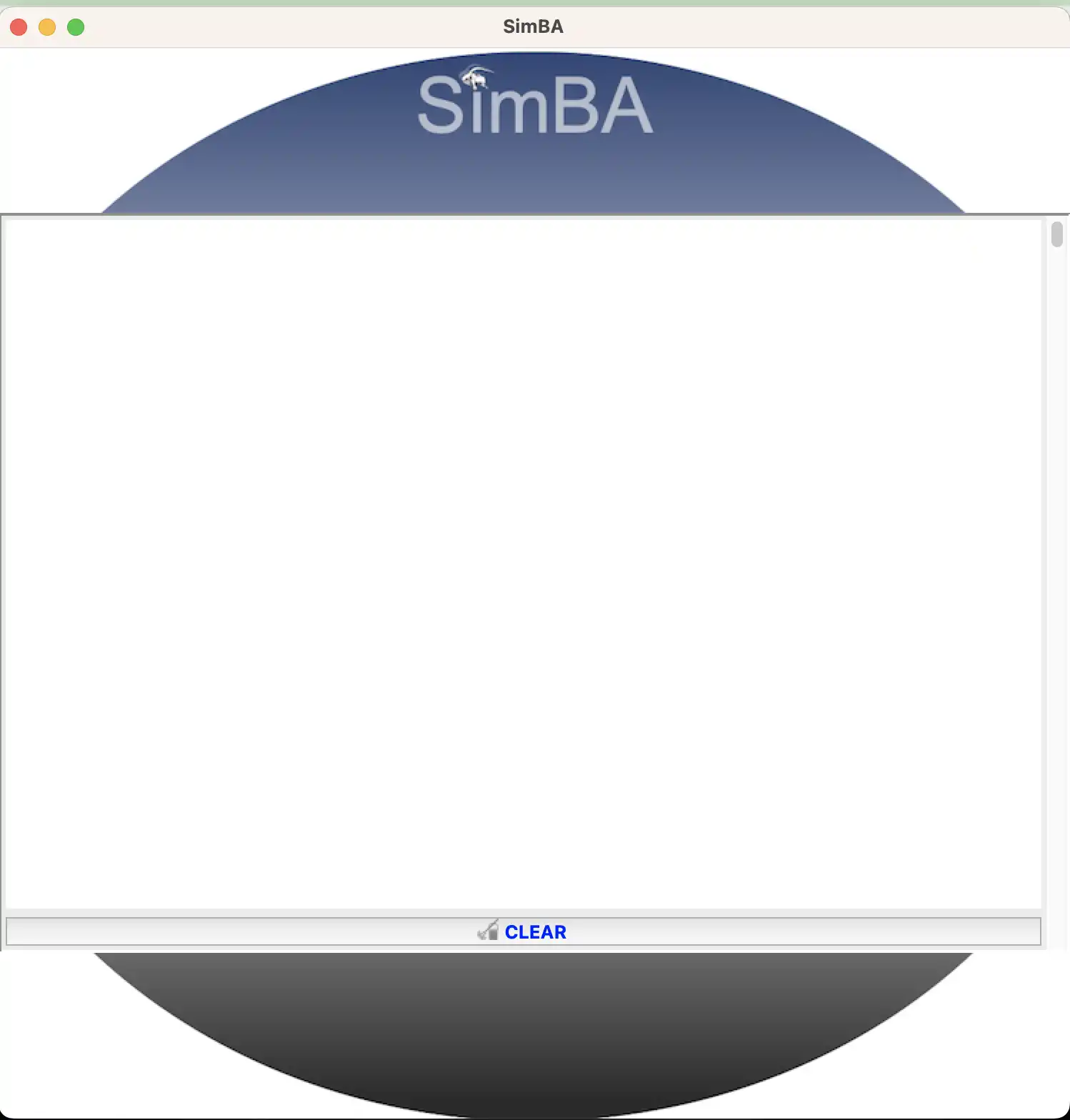
SimBA may take a little time to launch depending on your computer. Once it does, you should first see this splash screen:
Followed by the main SimBA GUI window:
Tip
You can also use the Anaconda Navigator GUI interface to get the SimBA installation done. This method creates conda environments through a graphical interface rather than through the command line. You can read about how to install SimBA through the Anaconda Navigator HERE.
Option 2: Install SimBA in main python.
1). After installing python, open a command prompt and type the following command:
pip install simba-uw-tf-dev
Note
If you are seeing error messages related to some dependency conflicts, then you need to either downgrade your pypi package or instruct SimBA to ignore these dependency conflicts - either works. To find more information on how to do this, click HERE.
Now launch SimBA by typing:
simba
Option 3: Install SimBA using python venv
I honestly haven’t used this method much. But these are the steps that I have had reported to me that users had to go through:
Open bash or command prompt and run the following commands on current working directory
python -m venv venv
or (to make sure your virtual environment is python 3.6 if you have multiple python versions in your machine)
py -3.6 -m venv venv
Then activate virtual environment by
venv\Scripts\activate
Make sure you are using the latest pip version and setup tools
python -m pip install --upgrade pip
pip uninstall setuptools
pip install setuptools
Install simba
pip install simba-uw-tf-dev
Fix some package version
pip3 uninstall pyparsing
pip3 install pyparsing==2.4.7
Now you can launch simba in the terminal with.
simba
Requirements
For a list of the SimBA dependencies, and the packages that gets
installed when running pip install simba-uw-tf-dev, see
THIS
file.
Author Simon N sronilsson@gmail.com