🫧 Blob tracking in SimBA
https://github.com/user-attachments/assets/1838035d-e4c4-40e3-b98f-09e3b4cb9bc7
INTRODUCTION
Many of us use pose-estimation to track animal body-parts.
I have noticed that in many scenarios this is not required and simpler, faster, background subtraction methods as those used by commercial tools (like NOLDUS or AnyMaze or other open-source tools (like eZTrack) suffice.
The scenarios where background subtraction is sufficient is when we are tracking a single animal, and the body-parts we are interested are either (i) along the perimeters of the animal hull or body parts that can be heuristically inferred by their distance from the animal hull and movement of the animal. These body-parts are typically things like snout, nose, centroid, lateral sides, tail fin etc.
In these scenarios, we really don’t have to annotate body-parts and train supervised models to detect animals. Instead, we can use background subtraction and get the results much faster.
A NOTE ON BACKGROUND SUBTRACTION ANALYSIS SPEED
The speed of tracking through background sutraction is not only determined by your available hardware (i.e., you have a GPU, how many CPU cores you have, and how much RAM memory you have available).
It is also determined by the resolution of your videos and the frame-rate of the videos. The higher the resolution, and the higher the frame-rate, the longer it will take.
For example, if your video resolutions are large (1000 x 1000), but you can visually detect the animals even at smaller resolutions (640 x 640, or even 480 x 480), then consider down sampling your videos before performing blob detection.
Also, if you have collected your videos at a relatively higher frame-rate (say 30 fps), but you really don’t need to know where the animal is every 33ms of the video, then reduce the FPS of your videos to say 10 to get a location reading every 100ms.
These pre-processing steps can greatly improve the speed of animal tracking through background subtraction.
You can perform these pre-processing steps in SimBA. See the SimBA video pre-processing documentation HERE or HERE for how to change the resolution and frame-rate of your videos.
A NOTE ON GOOD BACKGROUND REFERENCE VIDEOS
When performing animal tracking through background subtraction, for every video we analyze, we need a background reference video example. Hence, for every video we want to analyze, we want to have two video copies: one which is the “background reference”, and one which is the video we are intrested in tracking the movement of the animal.
It is possible to select the same video as that being analyzed as the background reference video. However, note that this
may slow down processing of the video if the video is large (high resolution and/or frame rate), as the background has to be computed from a very large reference video.
may fail in situations where the animal is freezing/staying still in a single location throughout the video and reference video. This would cause the code to mistake the animal as beckground. Ideally, we
Best is to use a shorter snippets of the original videos as the background videos, where the animal is not present. These snippets reference videos lighting as the original videos but is ideally much shorter, and can have reduced FPS. Again, you can perform these pre-processing steps in SimBA. See the SimBA video pre-processing documentation HERE or HERE for how to change the resolution and frame-rate of your videos.
That said, I have used the original videos as the background reference videos many times, and in many sitauations doesn’t necessarily disrupt processing or produce inaccurate data.
STARTING BLOB TRACKING
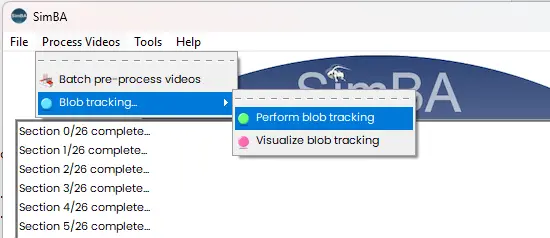
After starting SimBA click on Process Videos in the main toolbar, and go to Blob tracking -> Perform blob tracking as in the screengrab below:
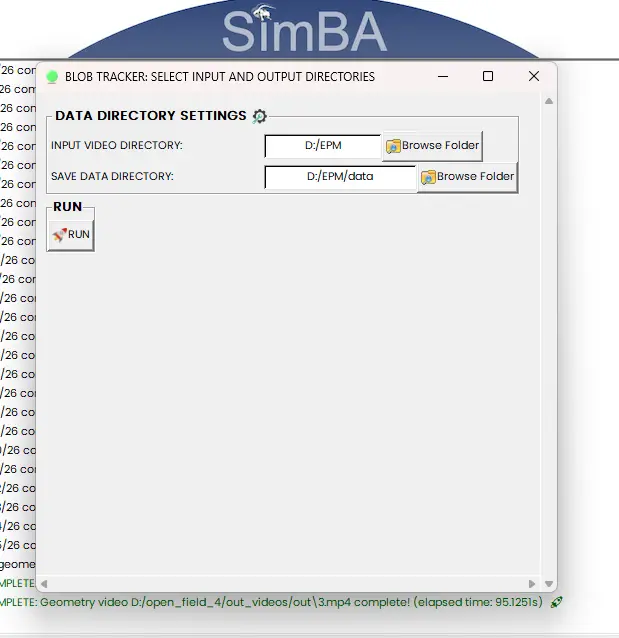
Next, you should see the following pop-up menu. Next to the INPUT VIDEO DIRECTORY entry-box, click BROWSE and select the directory which contains your videos. Next to the SAVE DATA DIRECTORY entry-box, click BROWSE and select the directory where you want to save your tracking data.
Note
For the SAVE DATA DIRECTORY, select an empty directory.
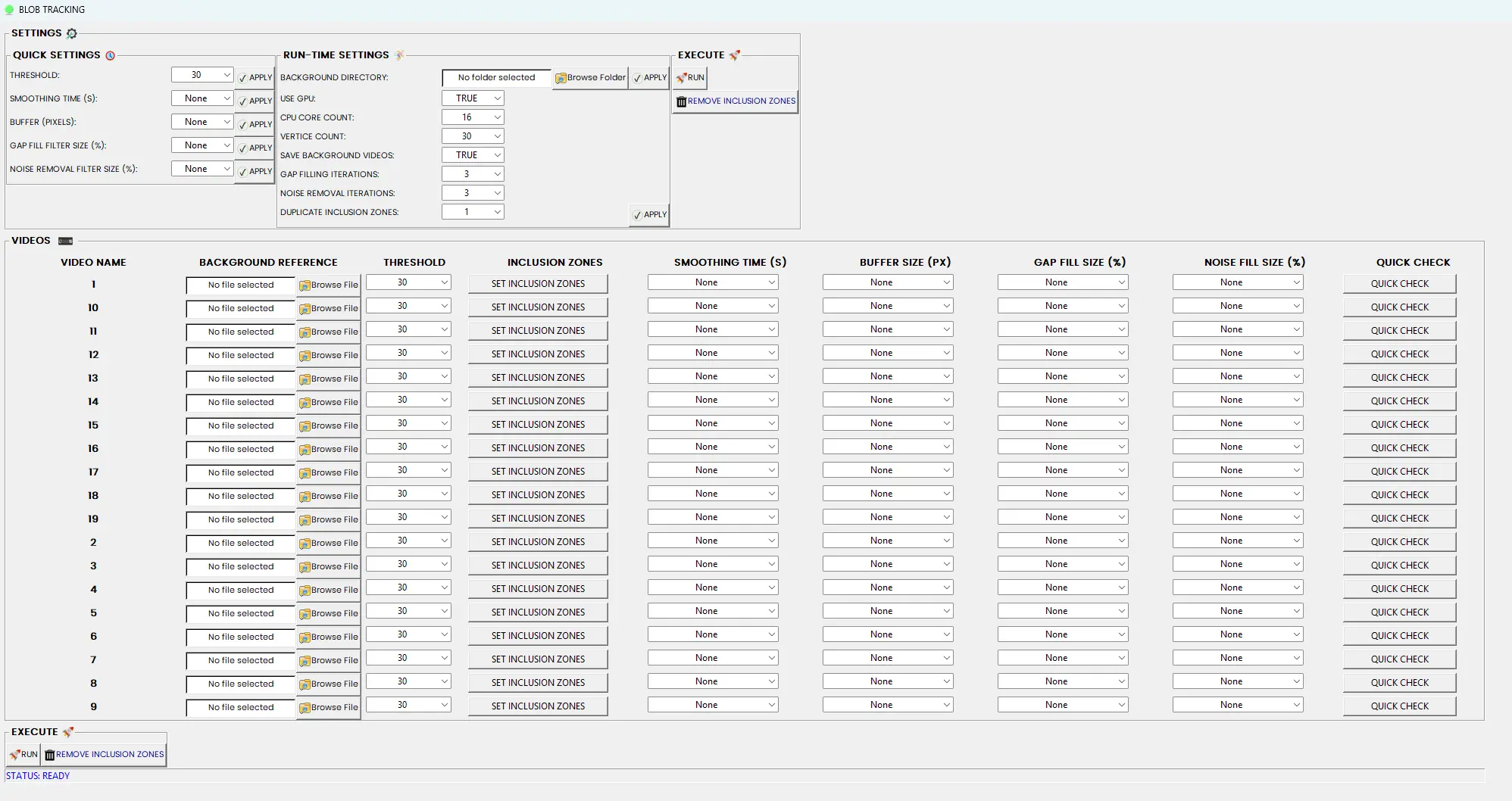
Next, hit the RUN button, and the below pop-up should show, which lists all the videos in the choosen INPUT IDEO DIRECTORY. We will go through each section of this pop-up below.