🫧 Blob tracking data project in SimBA
CREATE A BLOB DATA PROJECT IN SIMBA
Before working with Blob tracking data in SimBA, make sure you have the latest version of SimBA installed.
If you have SimBA installed on your system, you can make sure you have the latest version by typing pip install simba-uw-tf-dev --upgrade.
For instructions on how to create blob data in SimBA, see THIS or THIS tutorial, or THIS notebook.
To work with blob tracking data in SimBA, first create a BLOB tracking project in SimBA.
Follow Scenario 1 tutorial up-to the Generate Project Config section.
Next, under TYPE OF TRACKING select Classic tracking. Under BODY PART CONFIGURATION, select SimBA BLOB Tracking as in the screenshot below.
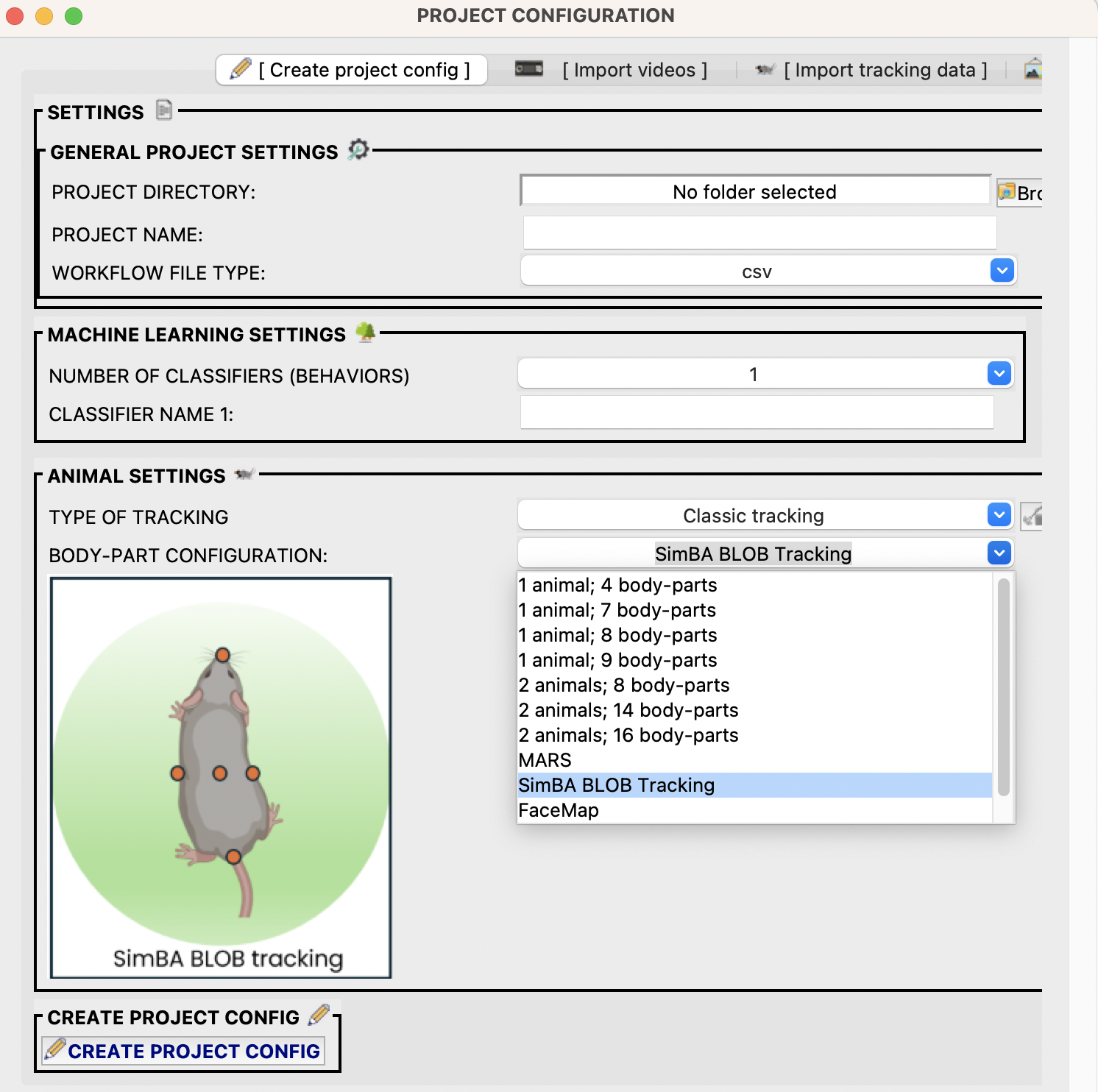
Once selected, click the CREATE PROJECT CONFIG button to create the project in your chosen directory.
IMPORT BLOB TRACKING VIDEO TO YOU SIMBA PROJECT
After clicking on the CREATE PROJECT CONFIG button, head to the [IMPORT VIDEOS] tab to import the orginal videos representing your blob tracking data into your new blob tracking SimBA project:
For more information on video import, see the Scenario 1 documentation.
The import of videos is not a strict requirement, but recommended, for amongst others, visualization puposes and the ability to read video meta data relevant for data smoothing if selected (see next step).
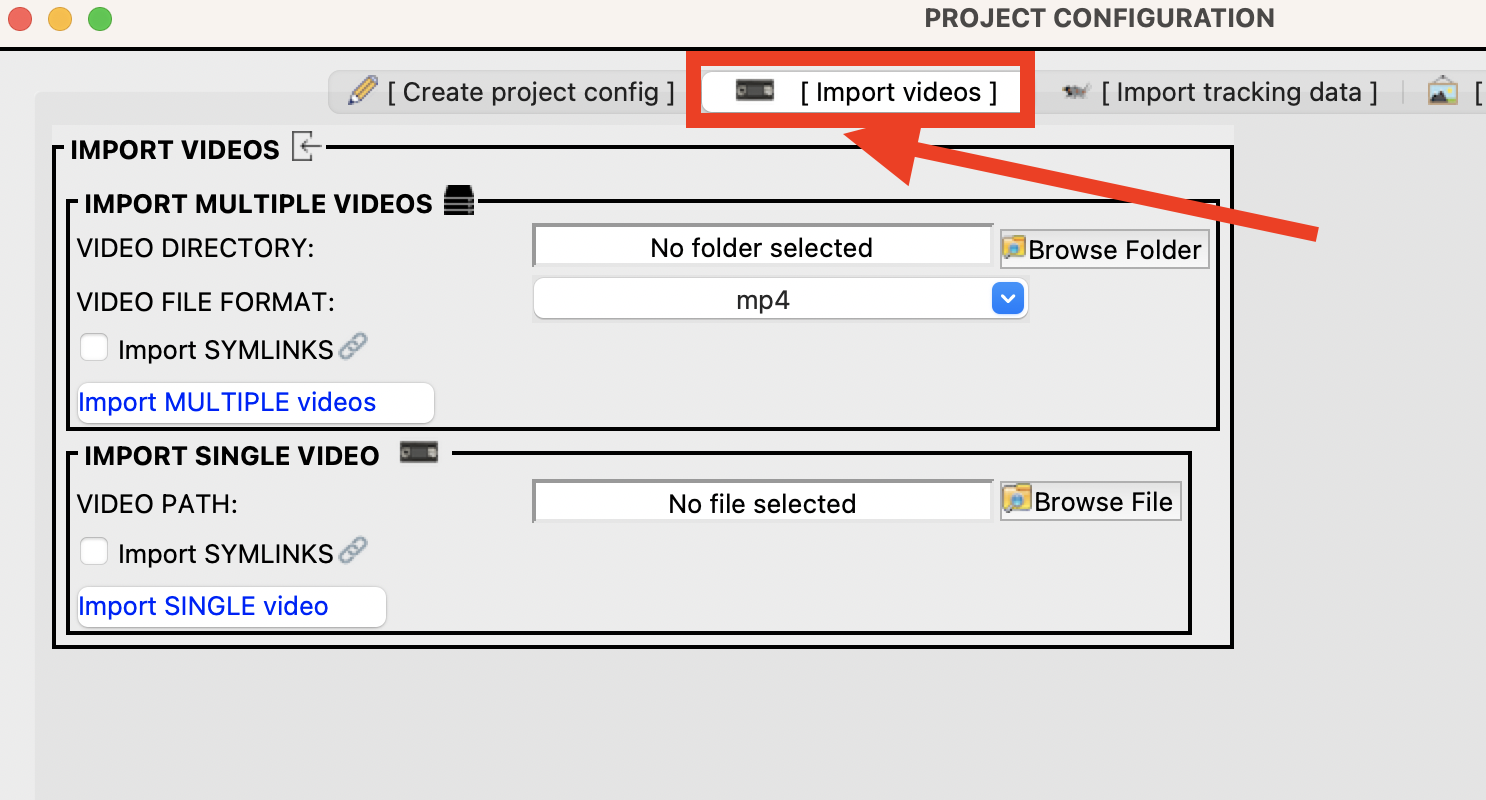
IMPORT BLOB TRACKING DATA TO YOU SIMBA PROJECT
Next, we need to import the blob tracking data to the project. Click on the [Import tracking data] tab. Here, select CSV (SimBA BLOB) from the DATA TYPE dropdown:
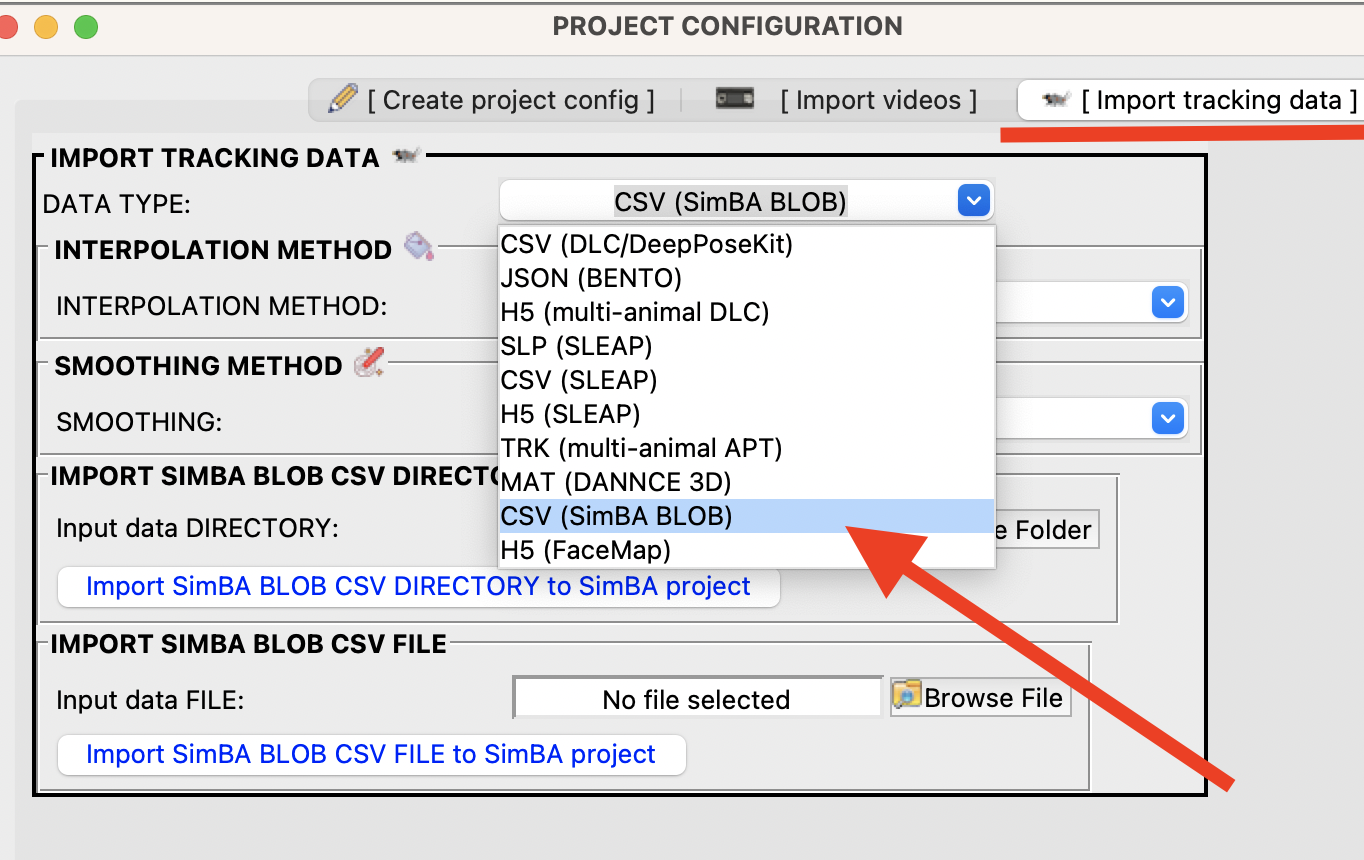
(i) If the SimBA blob data contains missing data, you can interpolate it using one of the options available in the INTERPOLATION METHOD dropdown. For more information on interpolation, see the
interpolation section in the Scenario 1 tutorial.
(ii) If the SimBA blob data is “jittery”, we may want to smooth the tracking data using one of the options available in the SMOOTHING dropdown. For more information on interpolation, see the
smoothing section in the Scenario 1 tutorial.
Note
If you are performing smoothing, it is required that you import the videos first (so SimBA can read the FPS frame-rate from the video file meta-data).
(iii) Next, to import a directory of blob tracking CSV files, select a directory containing .csv files and hit the import button. Alternatively, to import a single SimBA blob .csv file, go to the labelframe
IMPORT SimBA BLOB CSV file to SimBA project and hit the import single file button. You can follow the progress in the main SImBA terminal.
Once complete, close the PROJECT CONFIGURATION window and load the project as documented HERE
Important
When working with SimBA blob data in SimBA, there is no need to correct outliers (or no need click skip outlier correction).